Samsung Smart TVs are among the most popular televisions in the world, and setting up IPTV on them is straightforward once you know the correct steps. This guide covers the complete setup process for Samsung Smart TVs running Tizen OS (2016 and newer models) in 2026.
Method 1: Install an IPTV App from the Samsung App Store (Easiest)
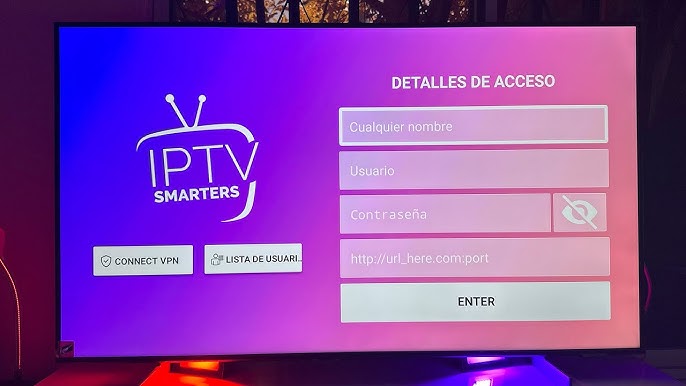
Press the Home button on your Samsung remote and navigate to Apps. In the search bar, type "IPTV Smarters" or "Hotplayer." Select the app and click Install. Once installed, open it and enter the server URL, username, and password from your Movinnoo welcome message. Your channels will load within 30 seconds.
Method 2: Smart IPTV App (Dedicated Samsung App)
Smart IPTV is a dedicated Samsung and LG IPTV application available in the Samsung App Store. Install it from the store, then note the MAC address displayed on screen. Send that MAC address to Movinnoo support via WhatsApp — our team will activate it for your subscription within 5 minutes. Restart the app to access all your channels.
Method 3: Use a Web Browser to Load Your M3U Playlist
If you prefer not to install a dedicated app, Samsung's built-in internet browser can play M3U playlists through web-based IPTV players. Open the browser, navigate to a web-based IPTV player, and enter your M3U URL. This method has some limitations in terms of EPG support and navigation, but works without any app installation.
Recommended Settings for Optimal Samsung IPTV Performance
For the best IPTV experience on your Samsung Smart TV: connect via Ethernet rather than Wi-Fi if possible (reduces buffering significantly), set your TV's Picture Mode to "Movie" or "Filmmaker Mode" for 4K content, disable "Auto Motion Plus" (motion smoothing) which can cause artifacts on fast-moving sports, and set your IPTV app's stream resolution to match your TV's native resolution.
Troubleshooting Samsung IPTV Issues
If your IPTV app does not appear in the Samsung App Store, your TV may need a firmware update. Go to Settings → Support → Software Update. If you experience buffering on your Samsung TV but not on your phone, the issue is likely your Wi-Fi signal to the TV — use a wired connection or a Wi-Fi extender positioned near the TV. For any setup difficulties, Movinnoo's 24/7 WhatsApp support team specializes in Smart TV setups.
Compatible Samsung TV Models for IPTV
All Samsung Smart TVs running Tizen OS (2016 and newer, models starting with UN, QN, or LS series) are fully compatible with IPTV apps from the Samsung App Store. Older Samsung TVs (2015 and earlier) running the Samsung Smart Hub platform have limited app support — for these, we recommend connecting an Amazon Firestick or Android TV box to access IPTV with full functionality.